How to add performance reviews
How to add performance reviews
1. Start with your CRM dashboard
2. Navigate to the Performance Reviews tab to manage employee feedback
3. Click Create Performance Review to start a new evaluation
4. Enter a name for the performance review to keep it organized
5. Assign the relevant account to ensure the review is tied to the right group
6. Select the desired account for this review
7. Choose an employee to be reviewed
8. Pick the employee for whom you want to create the review
9. Select the performance review type to tailor the evaluation
10. Set the review period ending to define the assessment timeline
11. Choose the end date for the review period
12. Pick your desired review end date from the calendar
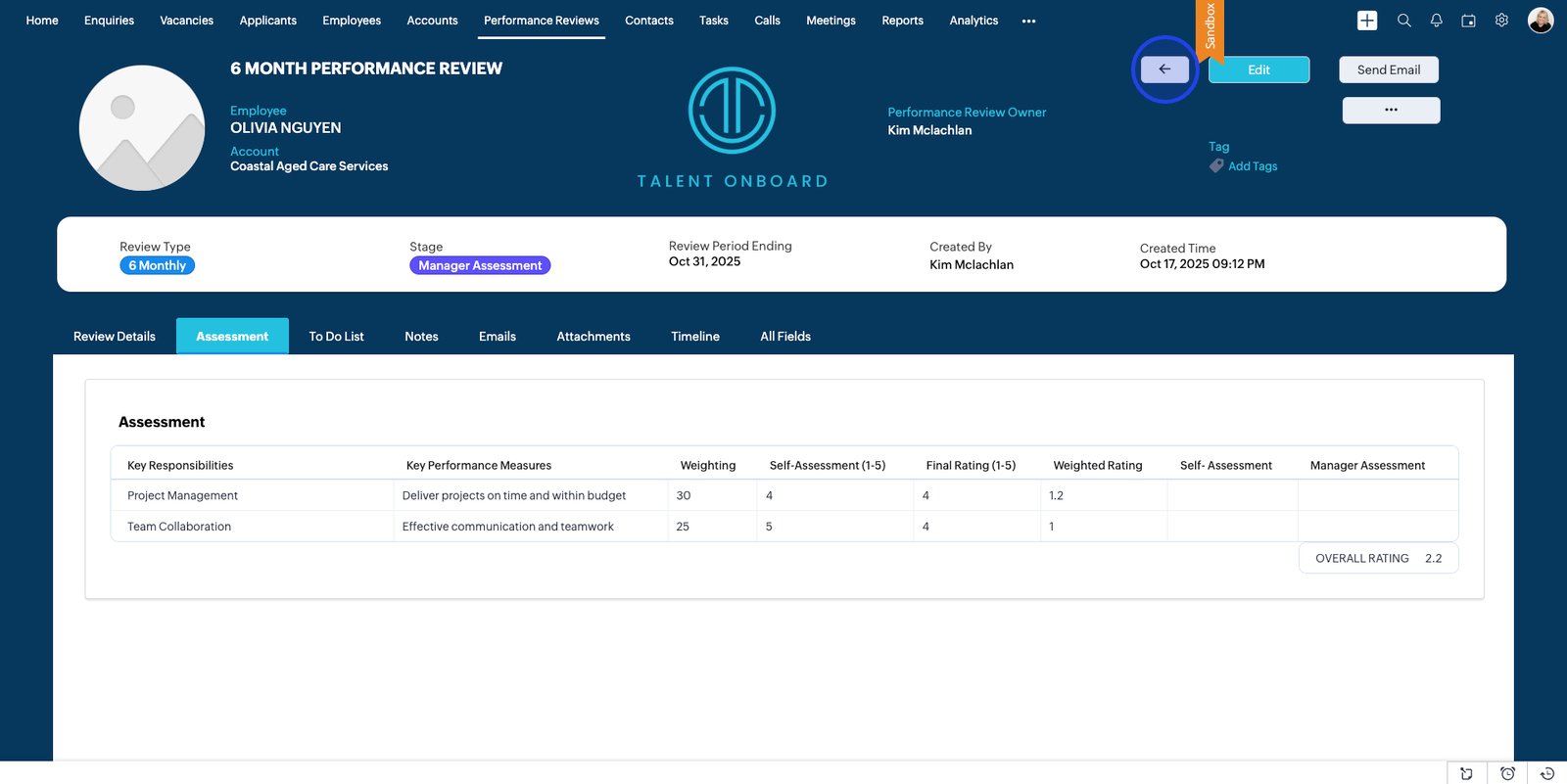
13. Open the Assessment section to input or review detailed evaluation criteria
14. Add key responsibilities to clearly outline expectations for the employee
15. Document specific performance measures to track progress effectively
16. Assign a weighting to show the importance of each responsibility
17. Enter a self-assessment score to gather employee insights
18. Input the final rating for a fair and balanced review outcome
19. Click Add row to assess additional responsibilities or measures
20. Add another key responsibility to provide comprehensive feedback
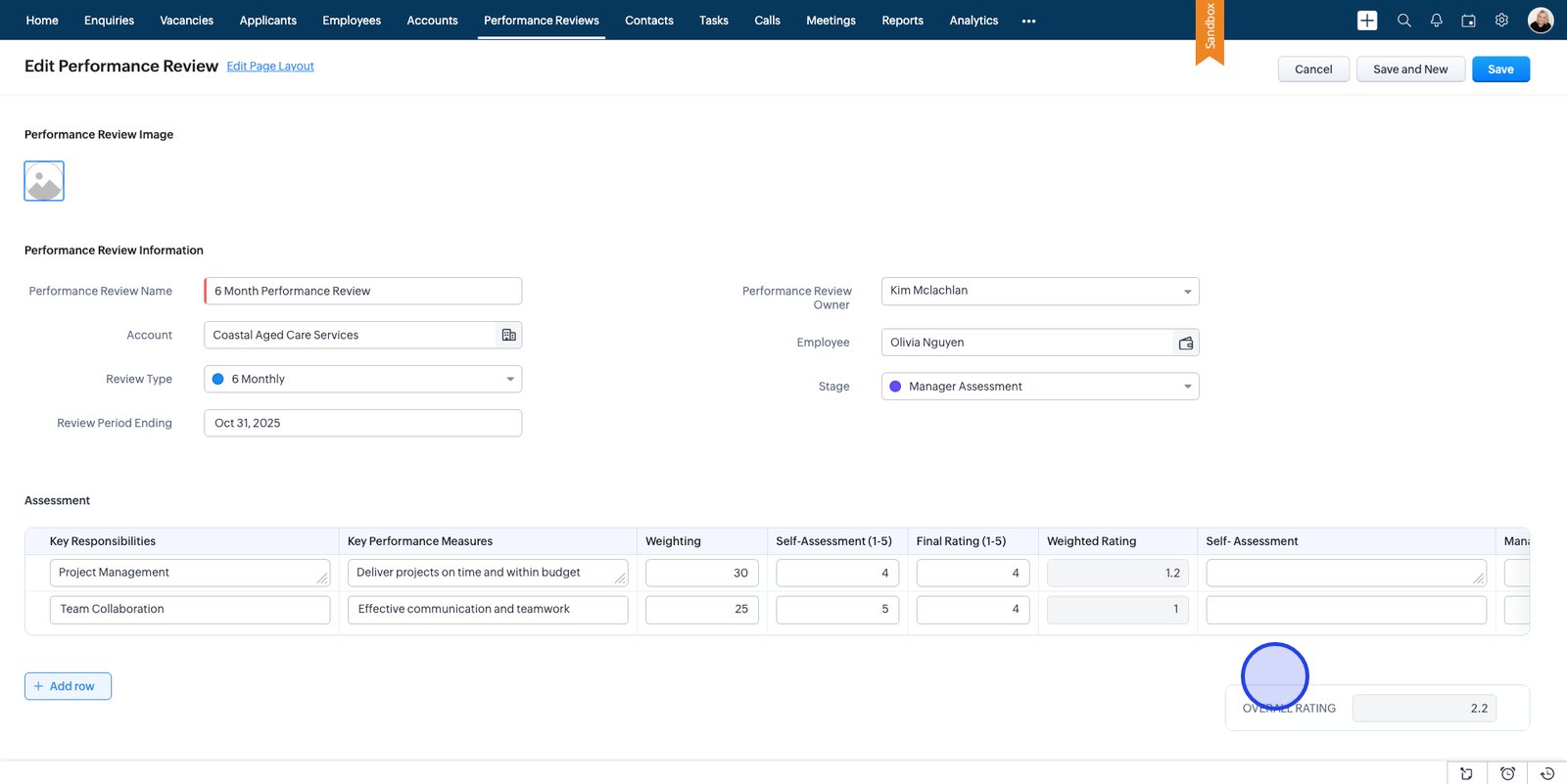
21. The overall rating is automatically calculated
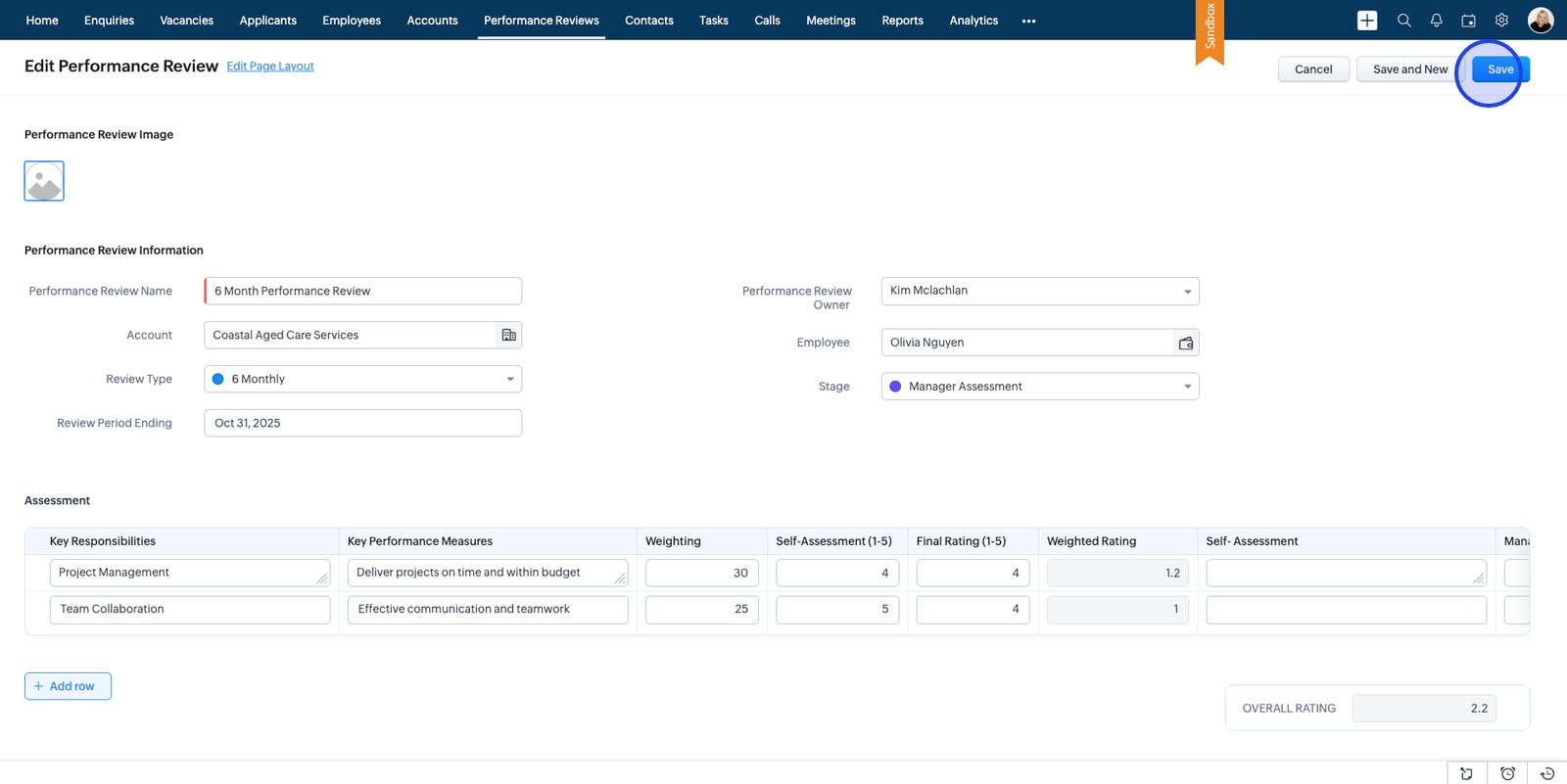
22. Click Save to securely store your completed performance review
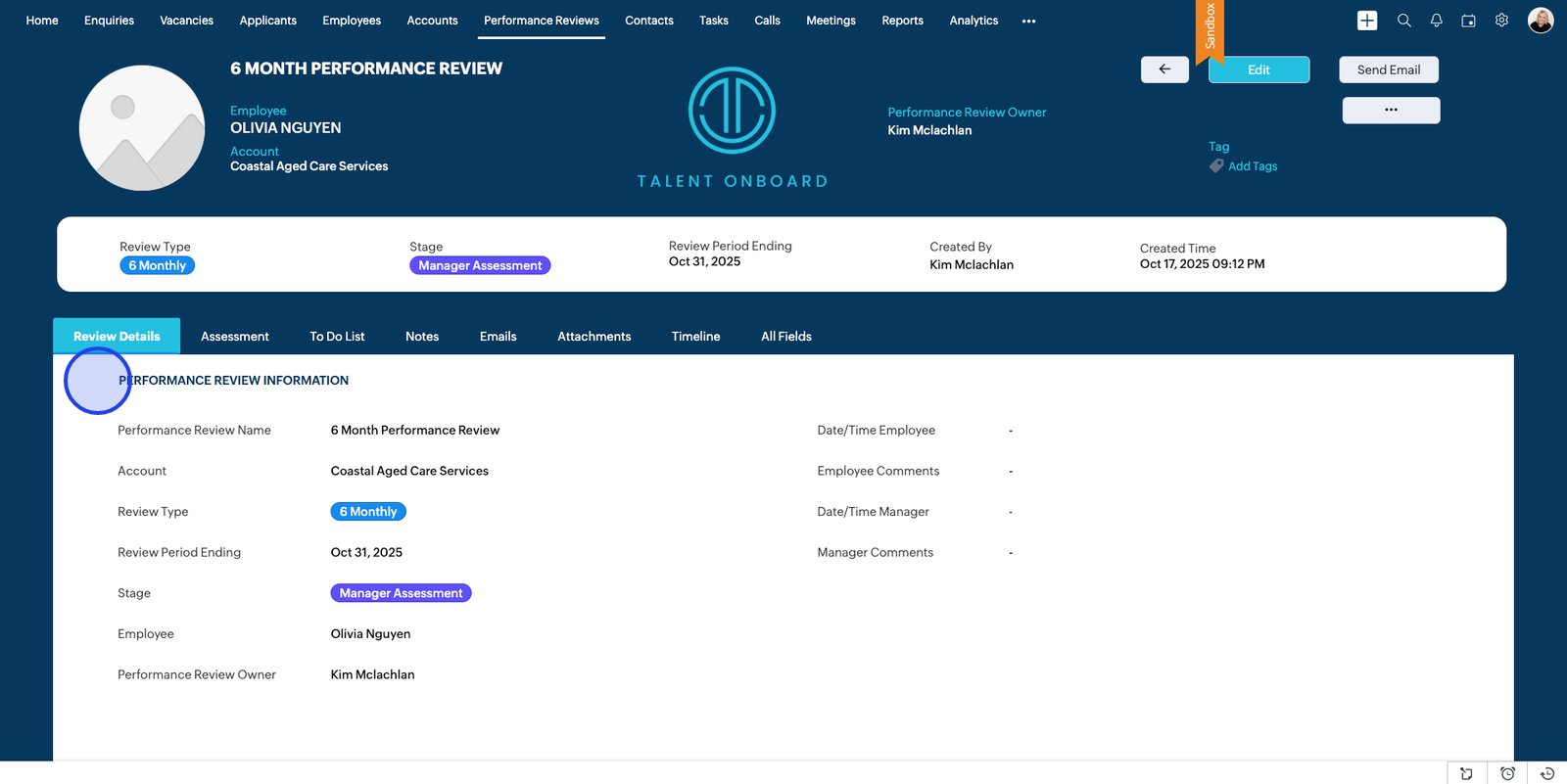
23. Review the information
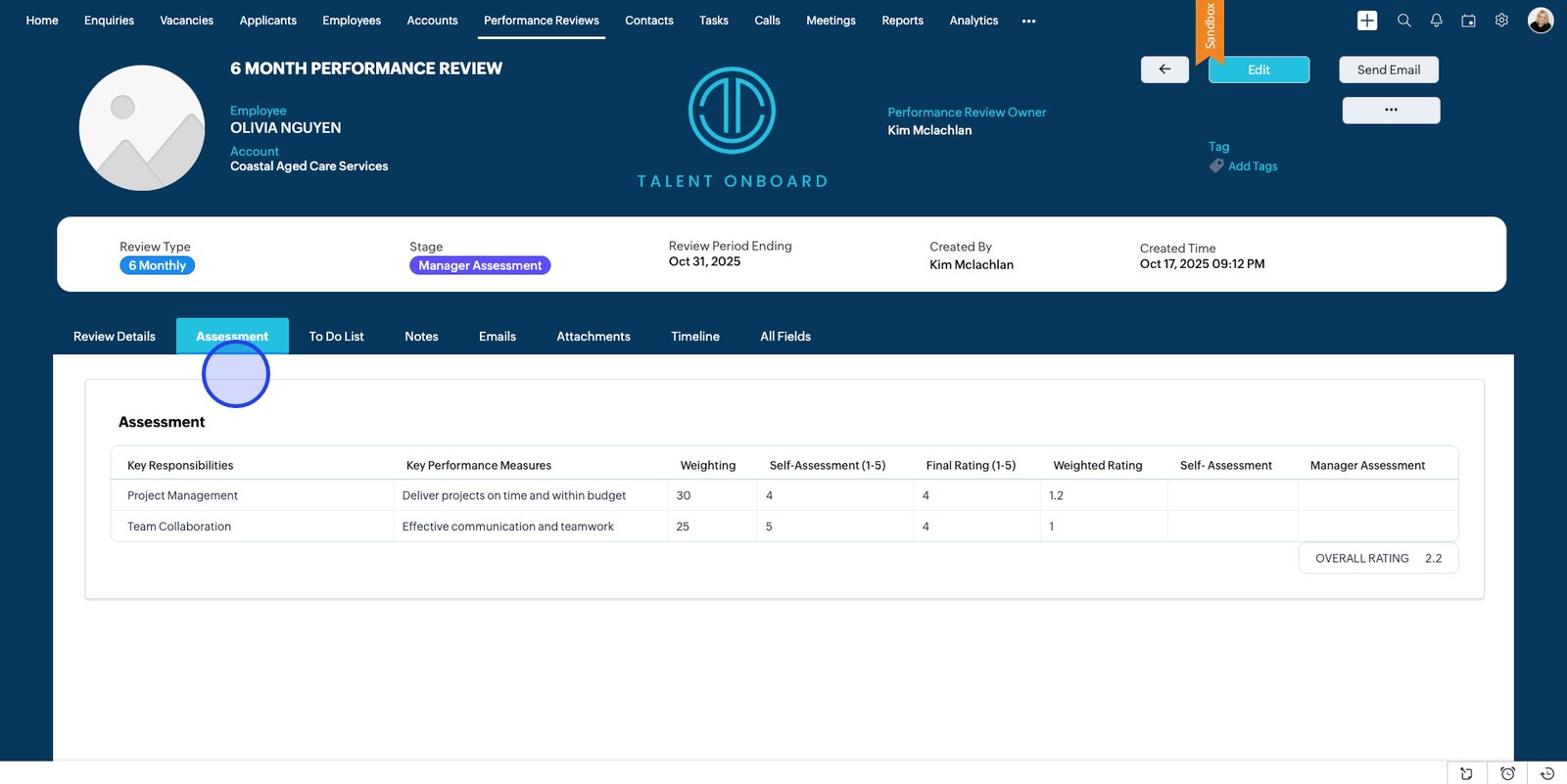
24. Review the assessment
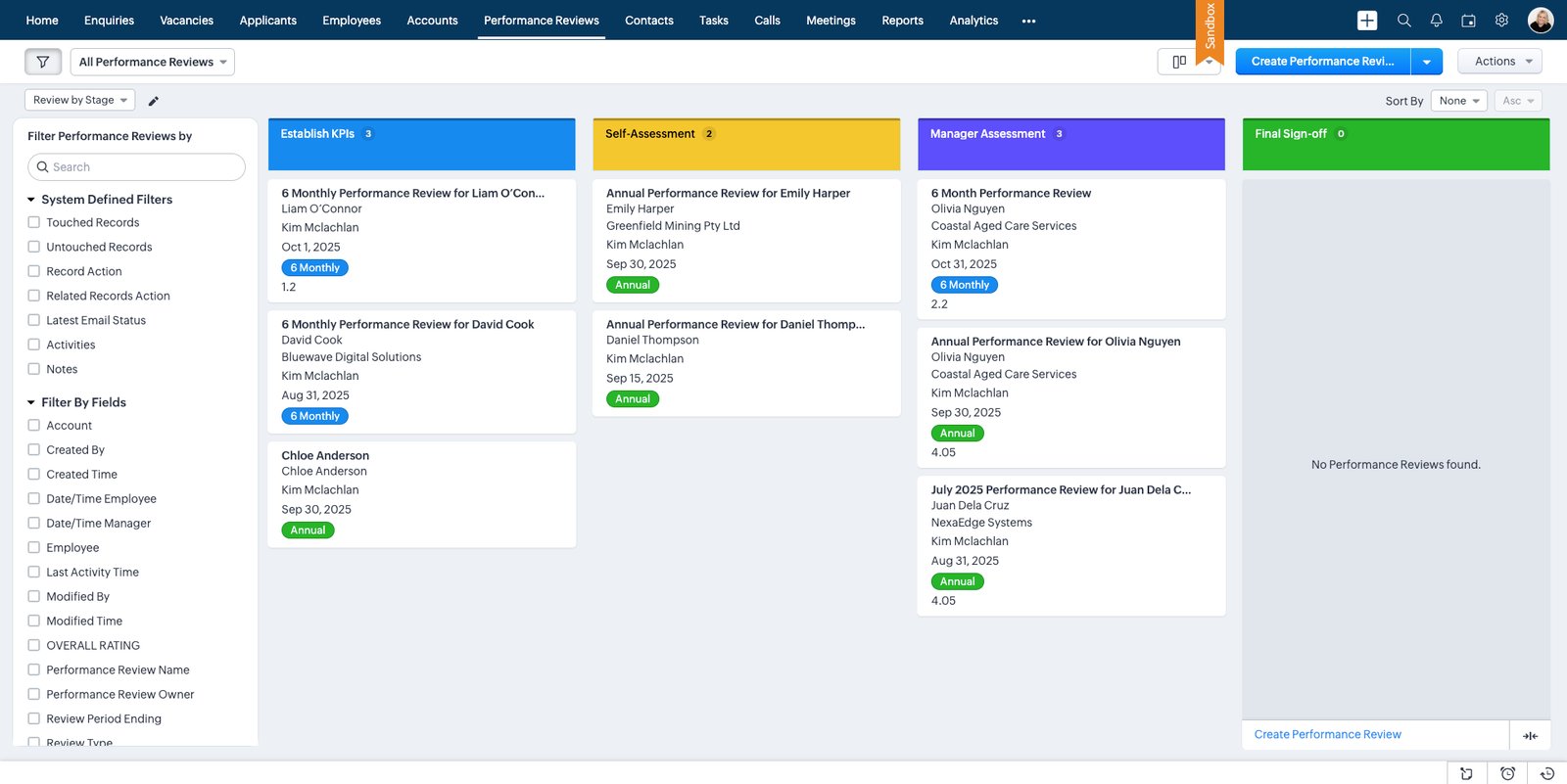
25. Return to the Performance Reviews Kanban view
26. Your
Performance Review has been added