How to Create and Send Estimates & Invoices in CrewDone

How to Create and Send Estimates & Invoices in CrewDone

1. Start by selecting the Jobs module:
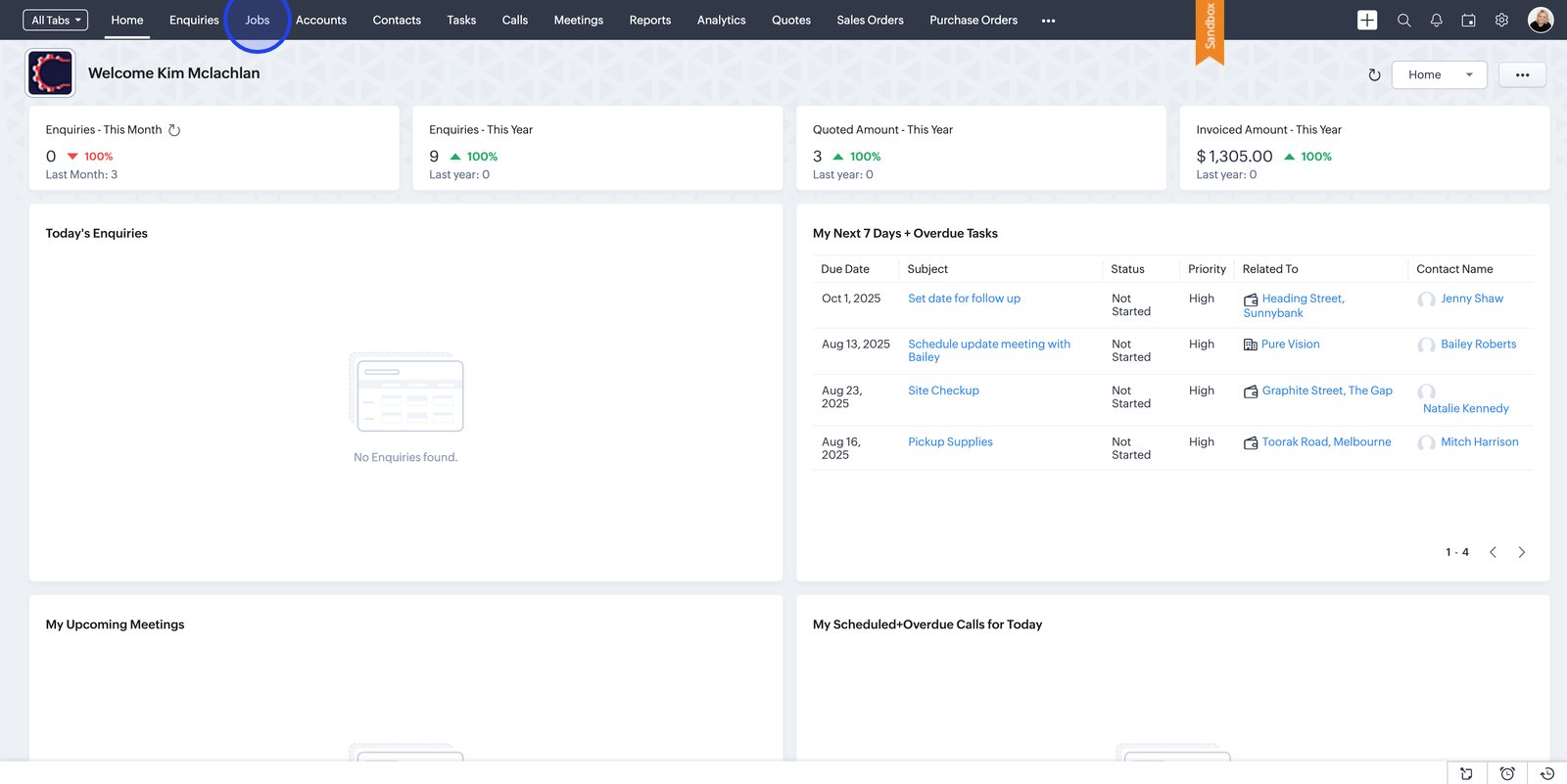

2. Select the specific job card you wish to add a quote or invoice to

4. Navigate to the Finance section:

5. On the Finance tab, access more quote options to swiftly manage or initiate new quotes for this job

6. Click New to quickly start preparing a customised quote for your client

7. Enter a subject to help your client easily identify the quote or invoice

8. Set the stage to track and update the progress of the quote or invoice

9. Assign the right team to ensure seamless follow-up and fast client response

10. Pick a date

11. Set a validity period to make your offer clear and professional

12. Select an expiration date to create urgency and transparency for your client

13. View the address section to double-check all client billing and shipping details

14. Add products or services

16. Add a description if necessary

17. Enter your terms to clearly outline expectations and avoid misunderstandings

18. Tap Save to save your quote or invoice

19. Open your saved quote or invoice from the list to review or finalise details before sending

20. Click Cancel to exit editing and keep your existing quote unchanged

21. Choose Send Email to send the quote or invoice to a client

22. Preview your quote or invoice and select Next to continue to the email

23. Select an email template or create the body for the email


    • Related Articles

    • How to Customise Canvas Views in CrewDone

      1. Start by selecting the a module that you would like to customise: 2. Click on on the detailed view of the card: 3. Navigate to the bottom of the detailed view and click edit: Please note that you will not be able to edit the CrewDone canvas view ...
    • How to create email templates

      1. Select Settings 2. Navigate to the Templates section 3. Click New Template to create an email template 4. Select the relevant module for your template 5. Click Next to customise your email template 6. Select Blank to start designing a campaign ...
    • An Overview of CrewDone

      Welcome to CrewDone — the smarter way to run your trade business. In this short overview video, we’ll walk you through how CrewDone streamlines quoting, scheduling, job management, and invoicing — all in one simple Zoho-powered system. Whether you're ...
    • How to Create an Email Signature in CrewDone

      1. Head to system settings to setup your email signature 2. Select Email under Channels to manage email options 3. Click Add New Signature 4. Pick the sender address so the right signature appears on your emails 5. Use the formatting toolbar to ...
    • How to Join the CrewDone Trial from outside of Australia

      1. Go to www.zoho.com/r/signup.html and Change Country to Australia to create your Zoho account 2. Sign in with the email you used to register for the trial 3. You will see confirmation of your new account 4. Check your email for a link to verify ...