How to manage enquiries

How to manage enquiries

1. Start by returning to your main dashboard

2. Navigate to the Enquiries tab to begin managing client communications

3. View all your client enquiries organised in a visually intuitive Kanban board

4. Select an enquiry card to instantly access or update client details

5. All the important information is visible on the first tab

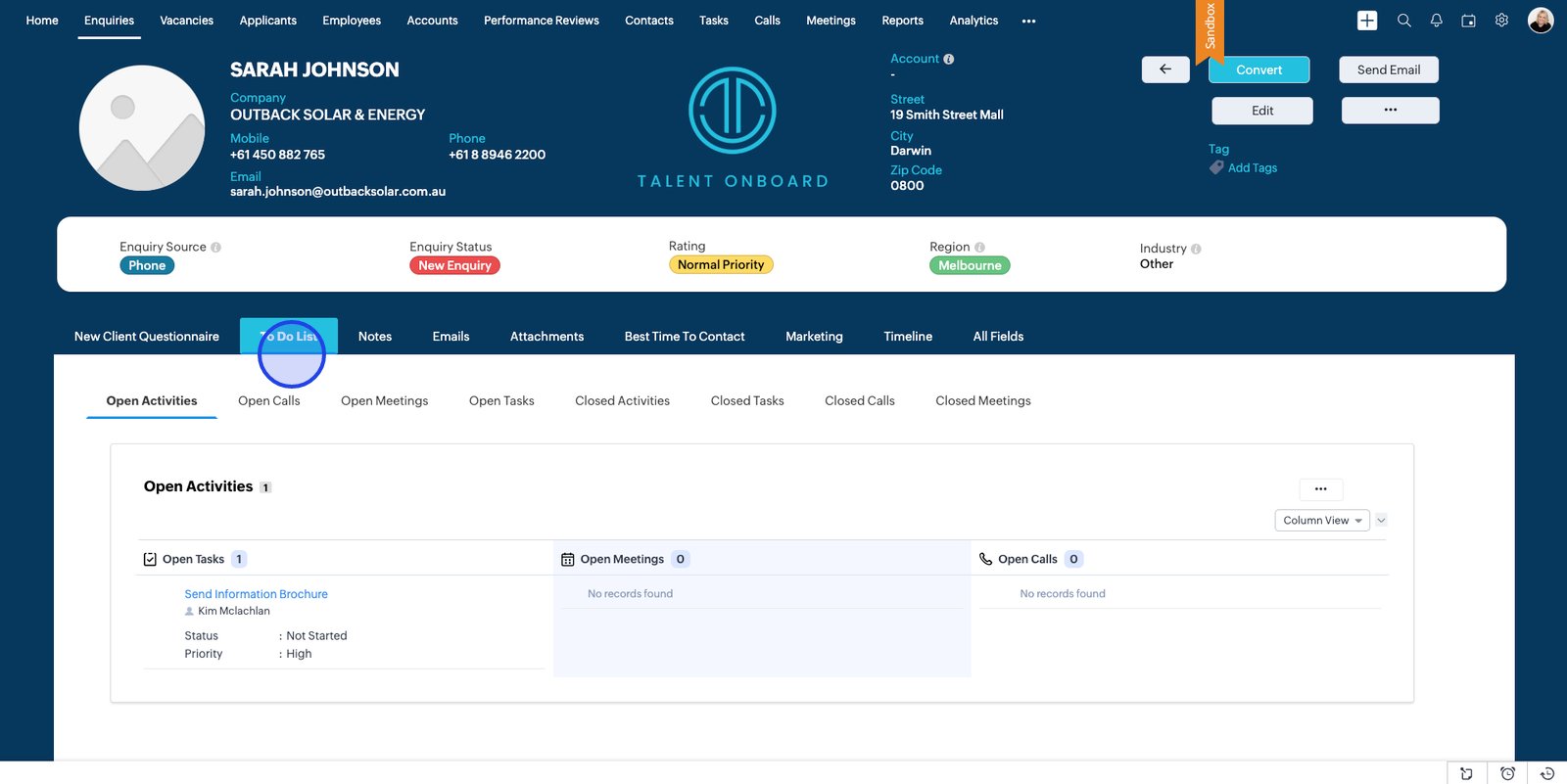
6. Check the To Do List to stay on top of ongoing client interactions

7. Switch to Open Calls to review any upcoming calls for this enquiry

8. Switch to Open Meetings to review any upcoming appointments for this enquiry

9. Jump to Open Tasks to quickly view your current to-dos tied to this client

10. Access Notes to keep track of client insights and important updates

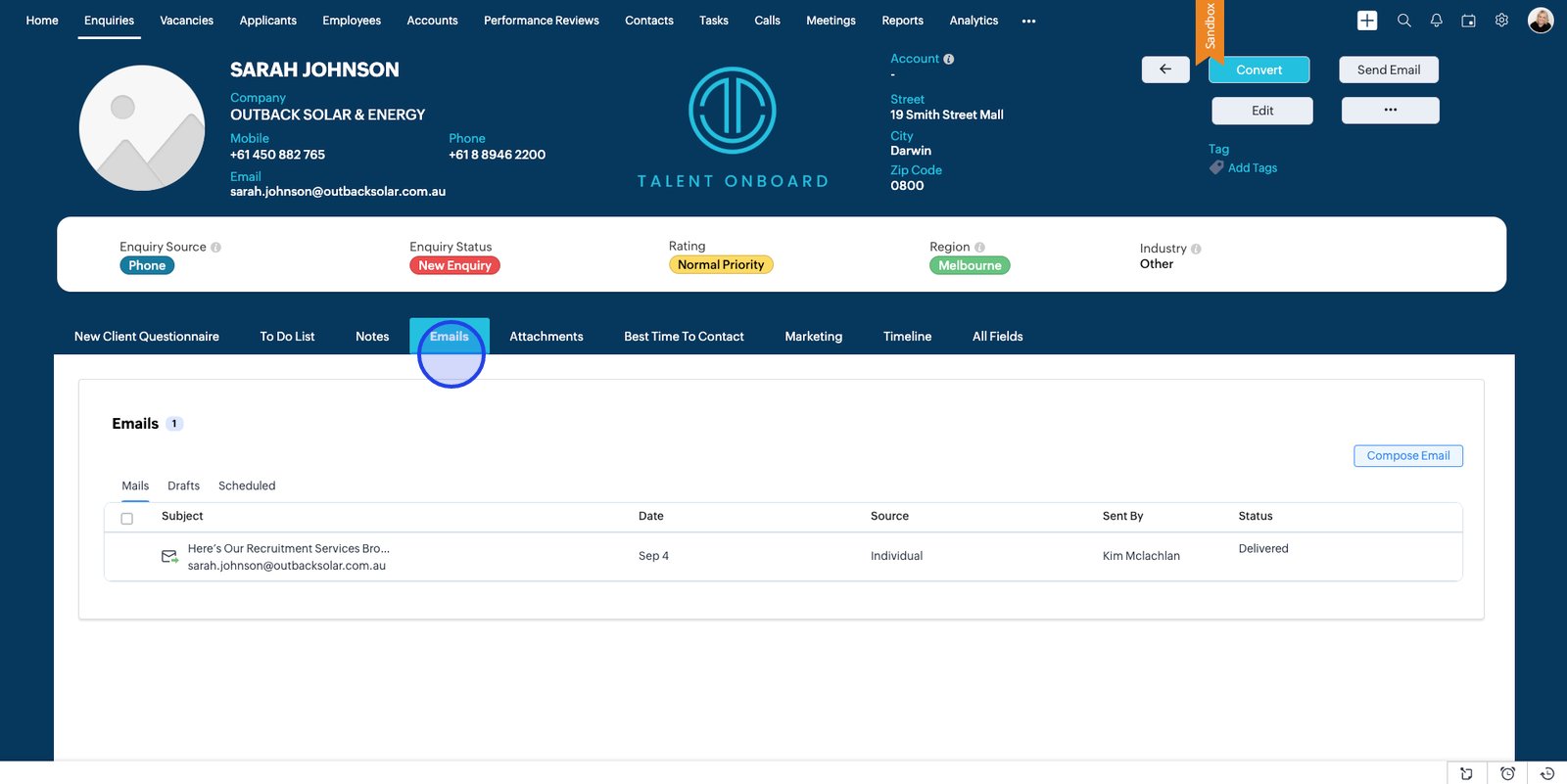
11. Review all client email exchanges to maintain seamless communication

12. Any attachment associated with this enquiry will be shown here

13. Check the Best Time To Contact tab for optimising your follow-up strategy

14. Dive into marketing data to tailor your outreach and nurture this relationship

15. View full timeline of events for this enquiry

17. All Fields are shown on the last tab

18. Edit the enquiry status to keep your pipeline accurate and up-to-date

19. Use the dropdown for available options

20. Use the Enquiry Status dropdown to easily track/update progress through your sales funnel

21. Cancel changes if you don’t want to update the enquiry status at this stage

22. Click the back arrow to return swiftly to your Kanban overview

23. Click and hold the enquiry card to make quick Status updates

24. Drag and drop to the relevant column

25. The Status has now been updated


    • Related Articles

    • Talent Onboard Enquiries | Manage Recruitment Enquiries Easily

      The Enquiries module in Talent Onboard is your first step in managing new opportunities and potential candidates. It allows you to capture every expression of interest — whether it’s from a job seeker, referral, or internal request — and track it ...
    • How to manage users

      1. Click the settings icon to manage system preferences and admin features 2. Select Users in General to view and manage your team accounts 3. Click New User to quickly add a fresh team member 4. Begin by entering the new user's details 5. Select the ...
    • How to create Kanban views for a module

      1. Start by launching the app 2. Head over to the Enquiries module to manage and organise all your incoming requests 3. Click the dropdown next to Enquiries by Status to begin customising your workflow display 4. Select Create Kanban View to tailor ...
    • Talent Onboard Applicants | Track and Manage Candidates Effortlessly

      The Applicants module in Talent Onboard gives you a complete view of every candidate in your recruitment pipeline. From initial application through to interview, offer, and onboarding, it allows you to track progress, store documents, and manage ...
    • Talent Onboard Accounts | Manage Client and Company Records Effortlessly

      The Accounts module in Talent Onboard helps you manage all your company and client records in one central location. Whether you’re tracking the organisations you recruit for or managing internal departments, Accounts keeps key details — such as ...