How to manage card/kanban views and track records
1. Select the module you would like to view
2. Click on a "contact" card to access detailed information and history
3. Navigate to the Accounts tab to manage and review account-level data
4. Select an account card to dive into client account details and history
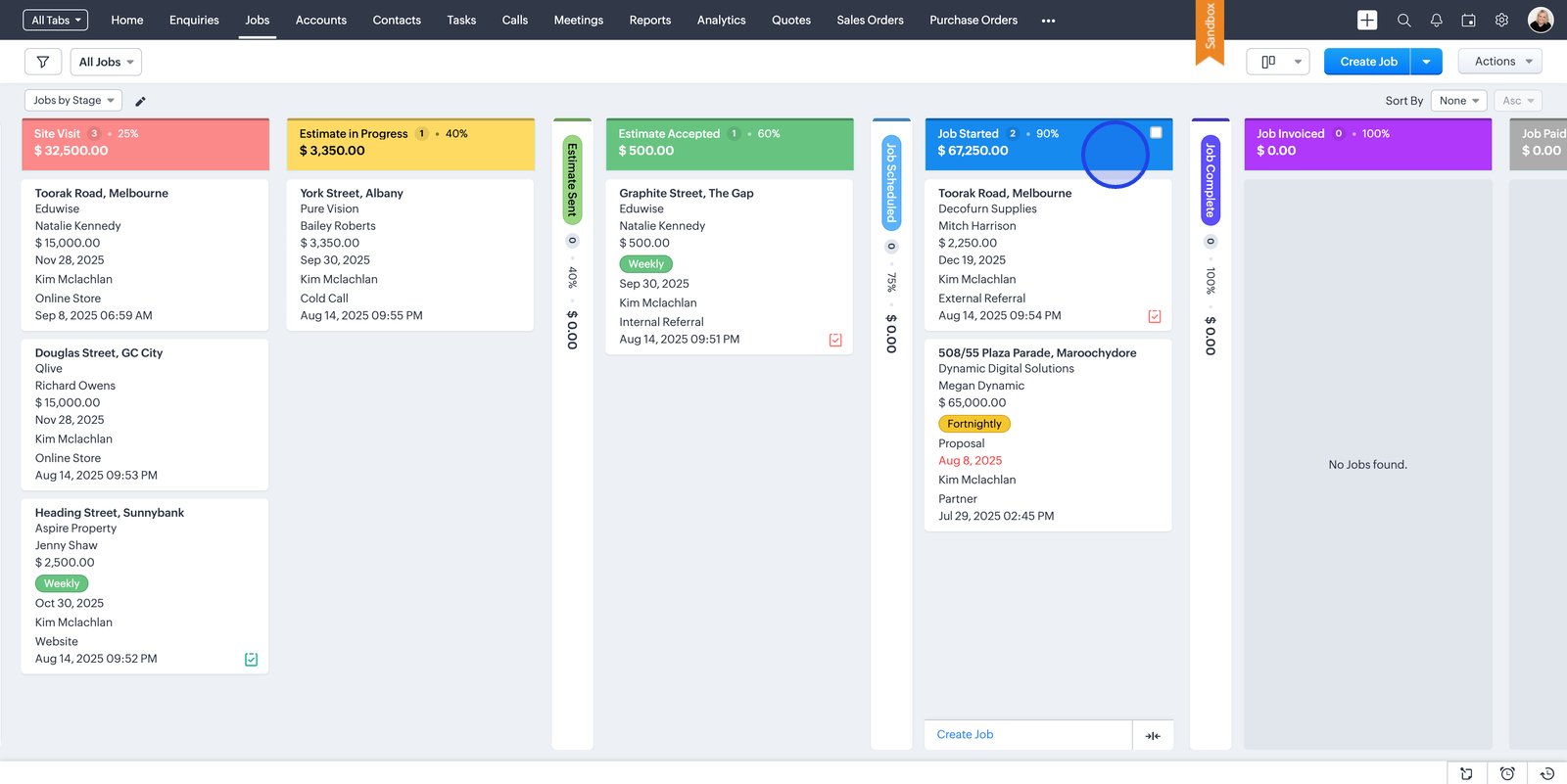
5. Switch to the Jobs tab to track and manage all client projects in one place
6. Open a job card to view or update specific job details and progress
8. Select a contact to view full interaction history and client-specific info
11. Switch to Account Overview for a snapshot of key client account metrics
12. Open a job name link to instantly access complete job details and status
13. Click the closing date to check project timelines or adjust dates as needed
16. Use the All Jobs dropdown on the left to filter and find jobs by stage or type.
17. Drag the "Job" card into another Stage to update the kanban view
Related Articles
How to create a custom Kanban/Card View
1. View more options using this dropdown. 2. Create a customised Kanban view to tailor job tracking to your needs 3. Choose a field to organise your Kanban board 4. Categorise your Kanban view by property type to view Jobs by Property type 5. Choose ...
How to Manage Your Jobs
Stay on top of every job with CrewDone. In this video, we’ll show you how to manage your jobs from start to finish — all in one place. You’ll learn how to create and update job records, assign team members, track progress, and keep all the details ...
How to Manage the Contacts module
Keep track of every person you work with using the Contacts module in CrewDone. In this video, we’ll walk you through how to manage your contacts — from adding new people and updating their details to linking them with accounts and jobs. The Contacts ...
How to manage users
1. Click the Settings icon to access system and admin options 2. Navigate to Users under the General section to manage user accounts 3. Use the dropdown to switch between user accounts 4. Click New User to add someone to your team 5. Enter the new ...
How to Manage Enquiries
Welcome to CrewDone — Managing Your Enquiries Made Simple. In this video, we’ll show you how to capture, track, and manage new enquiries seamlessly using CrewDone. From the moment a lead comes in, you’ll see how easy it is to record details, assign ...